(For the Korean version, click here)
For an engineer, digging through logs is a daily occurrence. Whether you are troubleshooting an outage or tracing system flow, logs are the first place you look. In a sea of tens of thousands of files, how quickly you find the data you need defines your skill level—and is the ultimate shortcut to “leaving work on time.”
Today, we will learn how to create a powerful one-liner using find (the file detective), egrep (the content specialist), and xargs (the bridge that connects them).
1. The File System Detective: find
find scours every corner of the file system to locate files that meet specific criteria.
- Essential Options & Examples:
-name / -iname: Search by filename. (-inameignores case)
find . -name "server.log"(Find the exact "server.log" file)-type f / d: Choose between files (f) or directories (d).
find /etc -type d -name "nginx" (Find a directory named "nginx")-size: Search by file size.
find . -size +100M (Search for large files over 100MB)- My Go-to Option:
-newermtThis is much more intuitive than-mtime, which requires you to calculate days. It allows you to use standard date formats, but there are a few things to keep in mind:Caveat 1: The Timezone Trap It operates based on the system time (UTC/KST, etc.). If the server is in UTC but you search based on your local time, you might miss logs due to the hour offset. It is safest to specify the timezone, like"2024-01-01 09:00:00 KST".Caveat 2: Date Formats It understands relative terms like"yesterday"or"2 hours ago", but for precision, theYYYY-MM-DD HH:MM:SSformat is recommended.
# Find files modified after Jan 1, 2024, 09:00 (KST/GMT+9)
find . -type f -newermt "2024-01-01 09:00:00 +0900"
2. The Content Solution: egrep
Once you’ve found the files, you need to sift through the text. egrep supports extended regular expressions to find complex patterns easily.
- Essential Options:
-i: Ignore case.-v: Invert match (show lines that do not contain the pattern).-A / -B / -C: Display lines After, Before, or around (Center) the match. This is vital for understanding the context of an error.
- My Go-to Option:
--includeThis limits the search to specific extensions. It speeds up the process significantly by skipping binaries or images and targeting only text files.
# Search for "ERROR" only within .log files across all folders
egrep -r "ERROR" . --include="*.log"

3. The Command Bridge: xargs
xargs acts as the “delivery driver,” taking the list of files found by find and passing them to egrep or other commands.
Frequently Used Examples:
- Mass Delete Temporary Files:
# Mass Delete Temporary Files
find . -name "*.tmp" | xargs rm -f
- Move Found Files to a Specific Directory (using
-I):
# (The {} acts as a placeholder where each filename is substituted one by one)
find . -name "*.jpg" | xargs -I {} mv {} /data/images/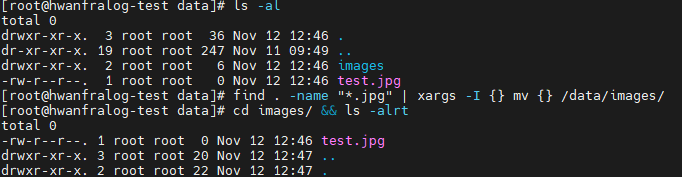
- Boost Speed with Parallel Processing (
-P):
# Compress files using 4 CPU cores simultaneously
find . -name "*.log" | xargs -P 4 gzip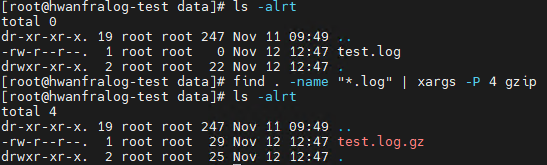
- Important Note (Handling Spaces): If a filename contains a space, the command might break. To prevent this, always get into the habit of pairing
find‘s-print0withxargs‘s-0. This combo is your shield in real-world environments where filenames aren’t always perfect.
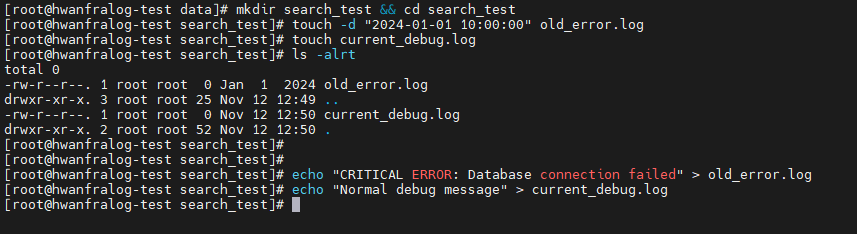
4. [Practice] Setting the Scene (Using touch)
Let’s build a test environment to verify these commands. Using touch with the -d option allows you to manipulate a file’s timestamp.
# 1. Create a test directory
mkdir search_test && cd search_test

# 2. Create an old log file from Jan 1, 2024
touch -d "2024-01-01 10:00:00" old_error.log

# 3. Create a fresh debug log for today
touch current_debug.log

# 4. Insert test messages into the files
echo "CRITICAL ERROR: Database connection failed" > old_error.log
echo "Normal debug message" > current_debug.log
5. The Full Suite: “The Invincible Combo”
Now, let’s combine everything to solve a real-world scenario: “Find all lines containing ‘ERROR’ in .log files created after the start of 2024.”
Bash
# 1. Filter by date using find (-newermt)
# 2. Pass filenames safely via xargs (-print0 / -0)
# 3. Search within those files using egrep (--include)

find . -type f -name "*.log" -newermt "2024-01-01" -print0 | xargs -0 egrep -i "ERROR" --include="*.log"
💡 Engineer’s Insights
“To be honest, I used to use
xargswithout really understanding how it worked. I’d just copy-paste commands from Google and think, ‘Oh, it works!’ But once I understood the principle—thatfindcreates a list andxargspackages those items one by one for the next command—I gained the ability to assemble commands myself.I encourage you to move beyond just copy-pasting. Start creating your own test environments with
touchto verify your logic. Once you start paying attention to details like timezones in-newermt, your judgment during a crisis will become sharper than anyone else’s.”