(For the Korean version of this post, click here)
Introduction: Why Start a Technical Blog?
As an engineer, I often encounter numerous troubleshooting scenarios and configurations. However, without documentation, these valuable experiences tend to fade away. To better organize my technical records and prepare for future monetization, I decided to build my own independent space using WordPress in 2026. In this post, I will share why I chose AWS Lightsail and how I connected my Gabia domain.
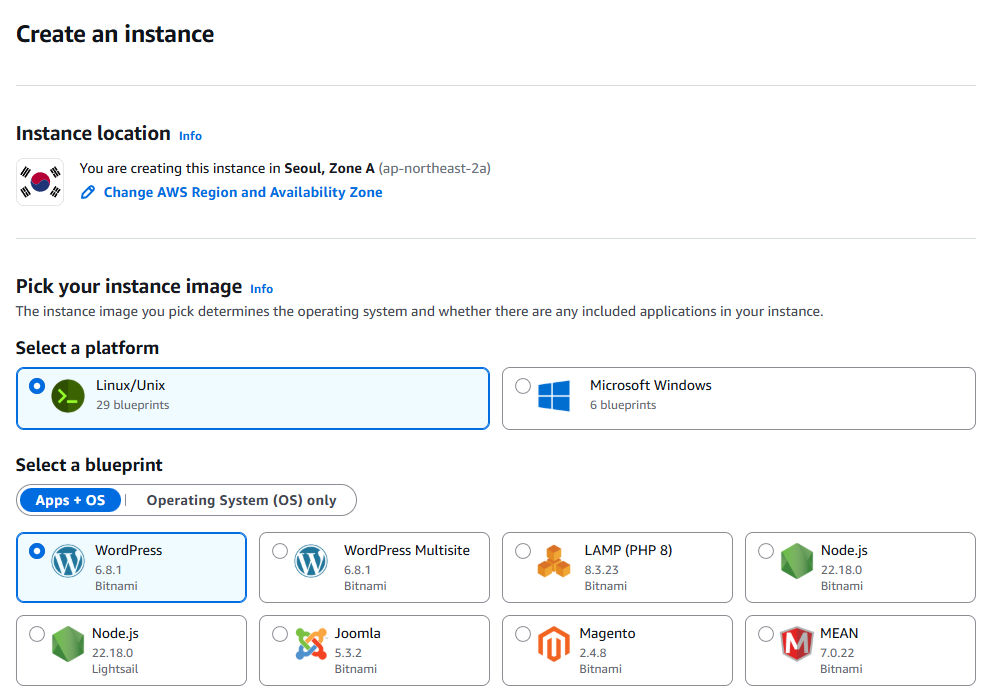
Infrastructure: AWS Lightsail (WordPress Bitnami)
Among various Cloud VPS options, I chose AWS Lightsail for its cost-effectiveness and ease of use for beginners.
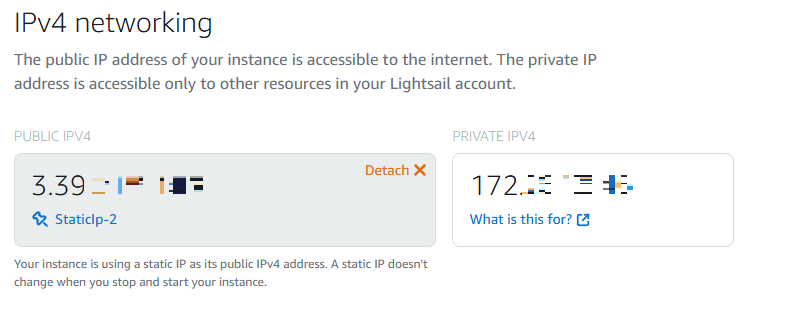
- Advantages: Provides a static IP, low cost ($3.5/month, with the first 3 months free), and allows deployment of an optimized WordPress stack with just a few clicks.
- Region: I selected the Seoul (ap-northeast-2) region to minimize latency for users in Korea.
Domain Connection: Gabia & DNS Configuration
I purchased the domain hwanfralog.com from Gabia, a popular registrar in Korea. Instead of simple forwarding, I chose to delegate the authority to AWS Name Servers for better management efficiency.
Changing Name Servers
I registered the four name server addresses generated by the Lightsail DNS Zone into the Gabia domain management page.
Configuring A Records
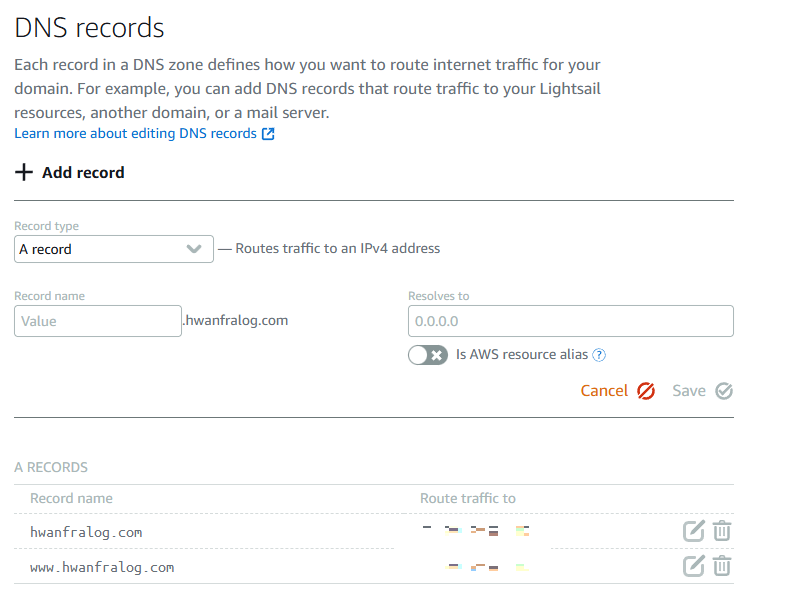
To ensure users can access the site with or without the www prefix, I configured the A records as follows:
- @ (Root): My Lightsail Static IP
- www: My Lightsail Static IP
Security: Applying Let’s Encrypt SSL
Implementing HTTPS is essential for security and SEO. I used the bncert-tool provided by Bitnami to resolve this easily.
Bash
# Run the Bitnami Certificate Tool
sudo /opt/bitnami/bncert-tool
This tool handles certificate issuance, renewal scheduling, and HTTP to HTTPS redirection all at once. It is an extremely convenient tool from an engineer’s perspective.

Post-Installation Optimization (Theme & Plugins)
I installed GeneratePress, which is known for being fast and lightweight. For Search Engine Optimization (SEO), I completed the following settings:
- Permalink Settings: Adopted the
/sample-post/structure. - Essential Plugins: Installed “Site Kit by Google” and “Rank Math SEO”.
Closing: Future Plans
Now, hwanfralog.com will serve as a space where my technical assets accumulate. I plan to share various error-handling methods and tuning know-how encountered while operating IT infrastructure and databases. I will also consistently record my journey toward Google AdSense approval.